Working With Unfamiliar Devops Projects: From Not Knowing Anything About Angular to Successfully Deploying it

I had no prior knowledge of Angular, JavaScript, TypeScript,
npm,nodeand yet I deployeed the angular project successfully. This blog is an recipe on how to approach unfamiliar projects in the real world and the funniest part — I was afraid too when I started but solved like a pro at the end. You can follow my recipe and do it yourself too.
What Brought Me Here?
After I completed Docker basics, I wanted to practice how to write scenario based Dockerfiles. I started with this angular example. It does have both compose.yaml and angular/Dockerfile. I intentionally removed both and create both to start fresh.
Everything was new for me — js, ts, node, angular, npm all. I had no idea what they were for when I first clone this folder in my local machine. But I was sure that it’s after all about installing some compiler/runtime and dependencies, managing configuration and finally serving the site. So with that motivation, I was good to go.
Understanding The Project
Understanding Requirements
It is just an angular app that finally runs on port 4200. To make it work, with some head scratching and googling, I came to know I need to install few of the things — runtime/dependencies, etc.
npmis required to install dependencies and angular cling- to install
npm,nodeis required
So this means first installing node and then npm and dependencies + angular cli. Conceptually, if I were to install them on the host, it would have been:
sudo apt-get install nodejs npm -y
cd project-root/
npm install # dependencies
npm install -g @angular/cli # install angular cli globally
With everything ready, I would have then been ready to serve the content:
ng serveAnd access with:
curl localhost:4200Understanding Project Structure
The path I will be talking will be relative path from project-root. If your project is at ~/my-project then for eg: if I say ./angular/README.md, take that as ~/my-project/angular/README.md.
I will only be talking about few files that actually matters:
Dependencies
The dependency requirements are defined in ./angular/package.json, while the exact versions of those dependencies and their sub-dependencies are recorded in ./angular/package-lock.json. These are called locked versions because the lock file specifies the exact package versions npm should install, rather than allowing npm to choose a newer compatible version.
When you run npm install from the ./angular directory, npm automatically detects these files and installs the required dependencies (into node-modules directory) using the versions specified in the lock file.
Angular Configuration
Angular configuration is defined in ./angular/angular.json. This file can change the default behaviour of angular cli (ng) which we will talk later.
Source Code
Source code is available at ./angular/src/ directory. This is where angular look for source while serving the site with ng serve because Angular configuration ./angular/angular.json told it so by:
"sourceRoot": "src",Now we are ready to create the first Dockerfile.
Very First Dockerfile: Didn’t Work
Choosing Base Image
    flowchart LR
  angular["ng serve (angular)"] -- requires --> npm -- requires --> nodejs
At first I thought:
Since Angular requires
npmandnodejs, if I find any Angular images, this should have all these requirements fulfilled so I don’t have to manually install them all.
But after searching on the internet, I could not find any satisfying images that community have verified related to Angular. So I opt going with nodejs and doing everything from scratch. Ok nice — I soon find one. Good news is it already has npm.
The Dockerfile
No bluff, see it:
FROM node:latest

WORKDIR /app/angular

COPY package.json package-lock.json .

RUN << EOF
npm ci
npm install -g @angular/cli
EOF

COPY . .

EXPOSE 4200

CMD ["ng", "serve"]
The obvious question which needed to be answered is:
Why use
npm ciinstead ofnpm install?
We need deterministic and repeatable build which is what nmp ci gives over npm install and it requires package-lock.json. Also npm ci is recommended for automated tasks like this. I am no GOD to understand this out of the box — I read the stackoverflow accepted answer — yeah I read the stackoverflow, not ChatGPT but not always.
Everything’s correct right? WORKDIR is set, requirements files are COPYed and installed with npm, runtime ng serve is now available. All set — I thought the same. And try first build (from ./angular where Dockerfile is):
docker build --progress=plain --no-cache -t angular-app:v1 . &> first-build.logI use extra flags to record build logs at first-build.log. There were logs of deprecated WARNing statements but who cares WARNing? because the image is ready:
IMAGE            ID             DISK USAGE   CONTENT SIZE   EXTRA
angular-app:v1   1b8f4f50afc1       2.26GB          513MB
Start the first-angular-container:
docker container run -d -p 4200:4200 --name first-angular-container angular-app:v1The app is available at port 4200 as discussed and the same post is published to be used for host.
docker container lsCONTAINER ID IMAGE COMMAND CREATED STATUS PORTS NAMES
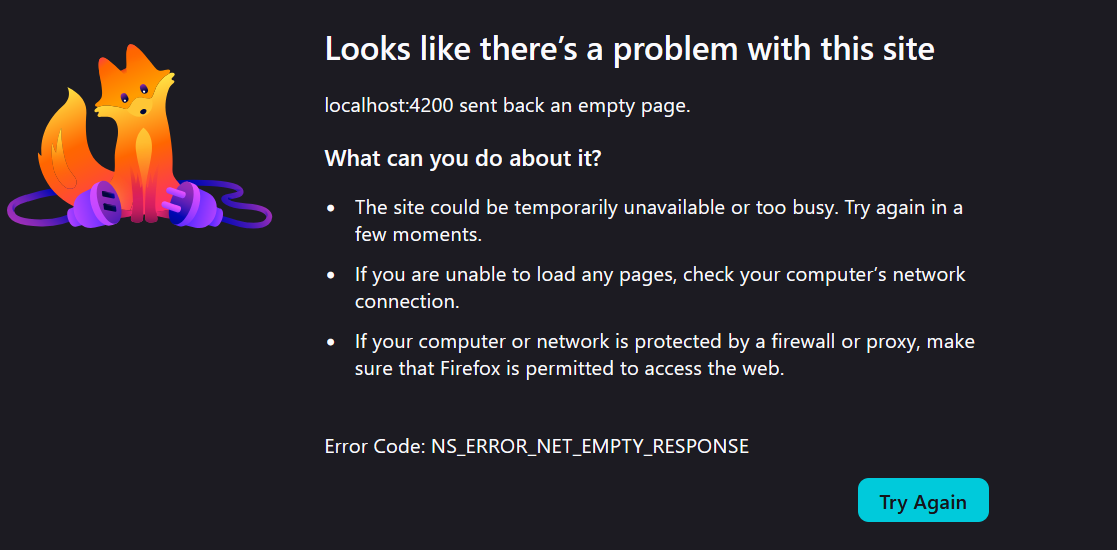
87370c17be99 angular-app:v1 "docker-entrypoint.s…" 7 minutes ago Up 7 minutes 0.0.0.0:4200->4200/tcp, [::]:4200->4200/tcp first-angular-containerReaching out for localhost:4200 in the browser:
Debugging Problems
The failure was not intended becauese port was correctly published, I retried:
curl -v -4 localhost:4200The verbose output:
* Host localhost:4200 was resolved.
* IPv6: ::1
* IPv4: 127.0.0.1
*   Trying 127.0.0.1:4200...
* Connected to localhost (127.0.0.1) port 4200
> GET / HTTP/1.1
> Host: localhost:4200
> User-Agent: curl/8.5.0
> Accept: */*
>
* Recv failure: Connection reset by peer
* Closing connection
curl: (56) Recv failure: Connection reset by peer
The last line curl: (56) Recv failure: Connection reset by peer tells something. This is not a problem on the host side at least. I need to inspect the container logs:
docker container logs first-angular-containerI get pretty long logs:
- Generating browser application bundles (phase: setup)...
✔ Browser application bundle generation complete.

Initial Chunk Files   | Names         |  Raw Size
vendor.js             | vendor        |   2.14 MB |
polyfills.js          | polyfills     | 299.91 kB |
styles.css, styles.js | styles        | 173.22 kB |
main.js               | main          |  55.22 kB |
runtime.js            | runtime       |   6.51 kB |

| Initial Total |   2.66 MB

Build at: 2026-08-15T16:42:54.489Z - Hash: 2b01f80839c4d43a - Time: 5646ms

** Angular Live Development Server is listening on localhost:4200, open your browser on http://localhost:4200/ **


✔ Compiled successfully.
✔ Browser application bundle generation complete.

5 unchanged chunks

Build at: 2026-08-15T16:42:54.708Z - Hash: 2b01f80839c4d43a - Time: 107ms

✔ Compiled successfully.
tells nothing useful instead server was started and listening on localhost:4200. This means no problem with the server itself.
I get inside the container:
docker container exec -it first-angular-container bashwhich gives me container’s bash:
root@87370c17be99:/app/angular#From inside the container, I try reaching the server:
curl localhost:4200It gives me:
<!doctype html>
<html lang="en">
<head>
  <meta charset="utf-8">
  <title>Angular</title>
  <base href="/">
  <meta name="viewport" content="width=device-width, initial-scale=1">
  <link rel="icon" type="image/x-icon" href="favicon.ico">
<link rel="stylesheet" href="styles.css"></head>
<body>
  <app-root></app-root>
<script src="runtime.js" type="module"></script><script src="polyfills.js" type="module"></script><script src="styles.js" defer></script><script src="vendor.js" type="module"></script><script src="main.js" type="module"></script></body>
</html>
It was working inside the container but not outside the container. This could be a networking problem. I ask myself:
Is the container even listening on
4200in the interface my host can reach?
I tried seeing host:port listing with ss -tln but sadly ss was not available so I have to install the command in the container for further inspection. ss is made available by the iproute2 package in debian:
apt-get update && apt-get install iproute2 -yOkay then, now ss command is available.
ss -tlnshows me:
Netid           State            Recv-Q           Send-Q       Local Address:Port          Peer Address:Port
tcp             LISTEN           0                511                  [::1]:4200                  [::]:*
The server was listening only on localhost ([::1]) which can’t be reached from outside. Indeed it was a networking issue. See the Local Address:Port listing:
Local Address:Port
        [::1]:4200
This means ng serve only servers to localhost by default.
Second Dockerfile: Just Works
With the problem identified, the obvious solution is to update the CMD entry so that ng serve listens to the interface reachable from outside the container. I search and quickly found that --host 0.0.0.0 should be passed to make it available in global interfaces. So update the Dockerfile:
FROM node:latest

WORKDIR /app/angular

COPY package.json package-lock.json .

RUN << EOF
npm ci
npm install -g @angular/cli
EOF

COPY . .

EXPOSE 4200

CMD ["ng", "serve", "--host", "0.0.0.0"]
With the Dockerfile updated to listen on 0.0.0.0, let’s build our second image (v2):
docker build --progress=plain --no-cache -t angular-app:v2 . &> second-build.logNote
If you want it to build fast, skip the --progress=plain --no-cache flags. I wanted logs so that I use with --no-cache. --no-cahce essentially means don’t take build cache in account and build everything fresh.
There was no need of logs even for me as the only change was CMD — logs would have been almost similar to the first one.
We now have v2 image ready:
IMAGE            ID             DISK USAGE   CONTENT SIZE   EXTRA
angular-app:v1   f5c7a3669ffd       2.81GB          628MB   U
angular-app:v2   052ae1ecbd53       2.81GB          628MB
Let’s run our second container (second-angular-container) then with this image:
docker container run -d -p 4200:4200 --name second-angular-container angular-app:v2The output: Ahh! Let’s go, another problem to solve:
87e1d765c80ec8ac68a4b946e1c1e9c50e75c34e7f74a7a2c3171b06c8e2a83e
docker: Error response from daemon: failed to set up container networking:
driver failed programming external connectivity on endpoint second-angular-container (a1ce29233086a371739e8eca9954984e354fb3b0c70cb32aa48ded1023952ff7):
Bind for 0.0.0.0:4200 failed: port is already allocated

Run 'docker run --help' for more information
The useful part is:
Bind for 0.0.0.0:4200 failed: port is already allocatedAnd it’s obvious because port 4200 is already binded when first-angular-container was started.
Remove first-angular-container and run the second container:
docker container rm -f first-angular-container
docker container run -d -p 4200:4200 --name second-angular-container angular-app:v2
Opps!, another problem:
first-angular-container
docker: Error response from daemon: Conflict. The container name "/second-angular-container" is
already in use by container "87e1d765c80ec8ac68a4b946e1c1e9c50e75c34e7f74a7a2c3171b06c8e2a83e". You
have to remove (or rename) that container to be able to reuse that name.

Run 'docker run --help' for more information
The first line indicates first-angular-container was removed but container with the name second-angular-container still exists. This is from the previous command — second-angular-container was created but failed to bind at port 4200. This means you have to remove(or rename) it and then you can start new container with the same name second-angular-container:
docker container rm -f second-angular-container
docker container run -d -p 4200:4200 --name second-angular-container angular-app:v2
We have now container ready and port 4200 is published too:
CONTAINER ID   IMAGE            COMMAND                  CREATED          STATUS          PORTS                                         NAMES
cd24ab661974   angular-app:v2   "docker-entrypoint.s…"   14 seconds ago   Up 13 seconds   0.0.0.0:4200->4200/tcp, [::]:4200->4200/tcp   second-angular-container
And finally, I can see the site localhost:4200 running:
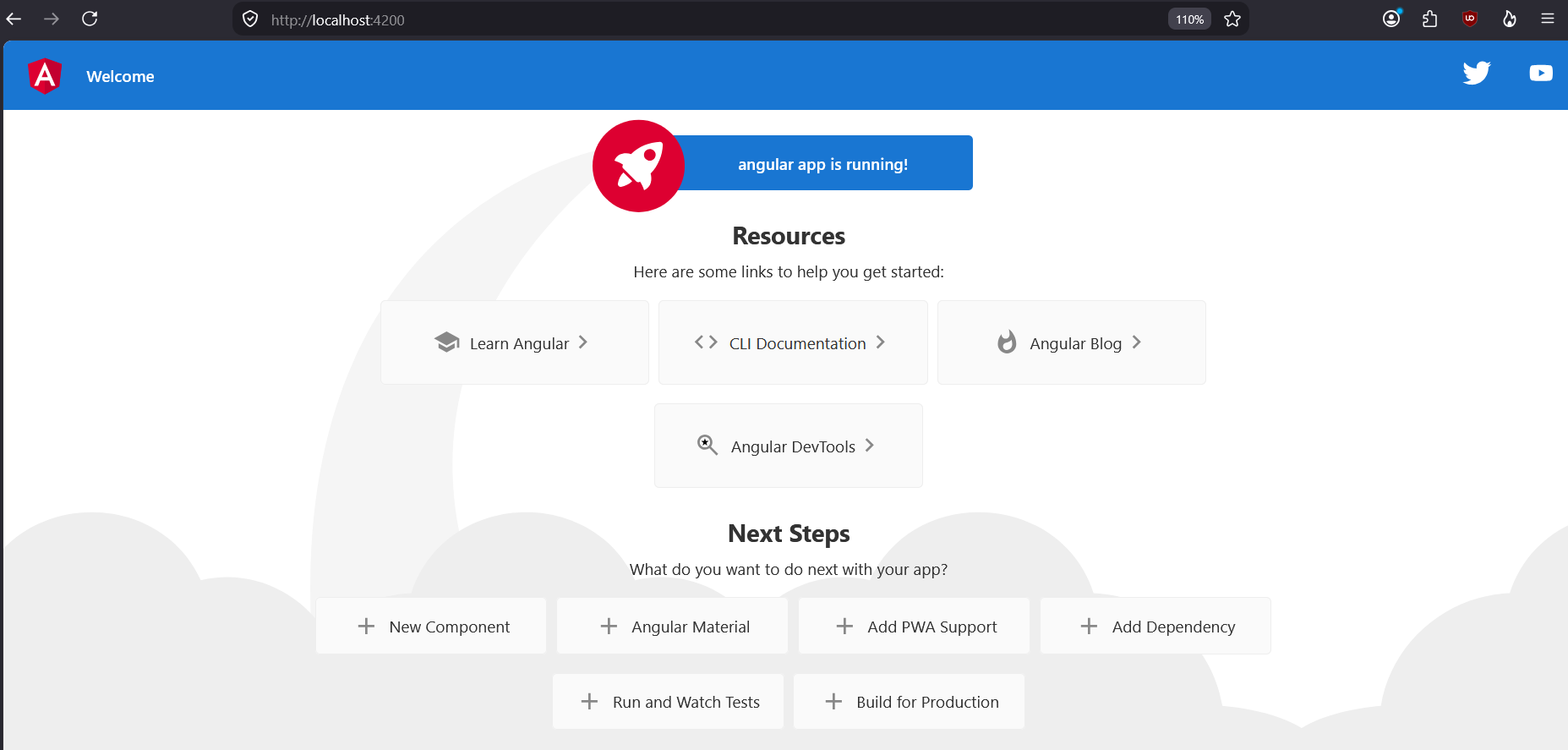
Hey! I have seen that before — that’s a classic. Yep that was the joy of SUCCESS because it’s not often that you will succeed this very fast — problems can be more tough to solve.
This time if you go inside the second-angular-container and see the host:port mapping with ss -tln, you will see:
Local Address:Port
      0.0.0.0:4200
Tip
You often don’t need to go inside the container just to see host:port mapping and most containers won’t allow you go inside easily.
You can make use of nsenter utility in your host machine which is available in most linux distros:
# get container pid
pid=$(docker inspect -f '{{.State.Pid}}' second-angular-container)
# see the host:port binding of the second-angular-container
sudo nsenter -t "$pid" -n ss -tln
The Problems: Ignored
The Dockerfile is not perfect — it just works. I write it including only what was required to actually run the angular app. This should be the first approach I guess. Once you can confirm “at least it works”, then only you can think of making it more correct and more secure. Therefore I intentionally ignored the Docker best practices:
- Real world app should pin the image version, I used
latestwhich can change - Real world app should use multi stage bulids i.e different stages for building, testing and production, I finish in single stage
- Docker Hardened Images (DHIs) have become bare minimum today. I use
node:latestwhich is vulnerable - Therefore I should have used DHI version of node image
- Version of images should not be managed the way I do (I go from
v1tov2just like that without thinking much), it has standard approach too — for example Semantic Versioning - and more…
Solving Problems
This is article on How to Approach Real World Unfamiliar Project as a Devops Engineer not on the Best Approach to Solve Dockerfile Problems. Solving problems is currenly left for viewers. You can start by solving one of the ignored problems.
If the second Dockerfile also had not worked, I would have finally seen the build logs I saved as second-build.log more deeply.
There were some deprecation warnings which could potentially cause the problem. The very first thing I would have checked is
angularversion compability withnode.jsand use that or close to that version as the base image if available.The official docker angular langulage guide might also have helped me to have the right shape for
Dockerfilerelated to angular project.If I could not have solve the problem, maybe because of some source code issue which I may not be aware of then I would have consult with development team to understand the code more thoroughly than google search alone.
The Compose File
Okay! “just working”
Dockerfileis ready but let me trycompose.yamltoo. That was my thought and yep I tried.
I already have enough information about the app because I already see it running:
- The app is simple enough, it doesn’t require own network — default is fine
- It doesn’t seem this app require any persistent storage — no volume is required for “just working”
Here’s is the simple compose.yaml I wrote:
services:
  angular-web:
    build:
      context: angular
    ports:
      - "4200:4200"
It uses ./angular/Dockerfile to build the image and publish publish port binding 4200:4200 at the run time — this is what we having doing all the time. Compose just make the architecture visible in a single file and managemenet is easy using compose commands compared to typing and remembering several commands.
Let’s build the app (image) first (from project root):
docker compose buildWe have now third image in our armory (angular-angular-web:latest is built):
IMAGE                        ID             DISK USAGE   CONTENT SIZE   EXTRA
angular-angular-web:latest   9f20d758c8db       2.81GB          628MB
angular-app:v1               f5c7a3669ffd       2.81GB          628MB
angular-app:v2               052ae1ecbd53       2.81GB          628MB   U
Let’s run the container, this time with Compose:
docker compose up -dWe have see this error before:
[+] up 1/2
 ✔ Network angular_default         Created                                                                                                  0.1s
 ⠴ Container angular-angular-web-1 Starting                                                                                                 0.5s
Error response from daemon: failed to set up container networking:
driver failed programming external connectivity on endpoint angular-angular-web-1 (cc28beb115ea53a7e87a346bc96f8669e56cebc4efa5218b31038d40c7409c83):
Bind for 0.0.0.0:4200 failed: port is already allocated
The host port 4200 is already published when second-angular-container was run and is still running. We no longer need this container, we can remove it:
docker container rm -f second-angular-containerNow, it should work:
docker compose up -dGreat the container is started:
[+] up 1/1
 ✔ Container angular-angular-web-1 Started
BUT BUT, curl localhost:4200 has error:
curl: (7) Failed to connect to localhost port 4200 after 1 ms: Couldn't connect to serverThis was because Compose Started the same container that was Created previously when port binding had failed because second-angular-container was already using port 4200. The solution is to remove the container and start new container. As said management is too easy when it comes to Compose. Just two commands and everything is ready:
# remove whatever is created with `docker compose up`
docker compose down
# create services (containers) and run container in detach mode
docker compose up -d
Now we have the positive response by curl localhost:4200:
<!doctype html>
<html lang="en">
<head>
  <meta charset="utf-8">
  <title>Angular</title>
  <base href="/">
  <meta name="viewport" content="width=device-width, initial-scale=1">
  <link rel="icon" type="image/x-icon" href="favicon.ico">
<link rel="stylesheet" href="styles.css"></head>
<body>
  <app-root></app-root>
<script src="runtime.js" type="module"></script><script src="polyfills.js" type="module"></script><script src="styles.js" defer></script><script src="vendor.js" type="module"></script><script src="main.js" type="module"></script></body>
</html>
You can test in your browser if you want on the same address localhost:4200.