HTTP Routing Using Envoy Gateway API
Envoy has very well documentation for its different supported features for K8s Gateway API. HTTP Routing is one of them. We will simplify the same example here by drawing architecture diagram for that particular example to have clear understanding. But even before that, we have to understand the major components of Gateway API and while doing Envoy demo we will have clear idea of the responsibilities of different personas in the organization. Kubernetes is fun.
Key Components of Gateway API
GatewayClass
GatewayClass mainly defines two things:
- GatewayClass Name (
metadata.name) which will be used by Gateway resource - GatewayController (
spec.controllerName)
apiVersion: gateway.networking.k8s.io/v1
kind: GatewayClass
metadata:
  name: example-gw-class
spec:
  controllerName: example.com/example-gw-controller
This is provided by infrastructure providers or written by infrastructure admin who installs the Gateway Controller.
Gateway
Gateway mainly defines:
- Traffic Processor (who handles the traffic) such as Load Balancer or Reverse Proxy
- Listener for that Traffic Processor i.e. in which port it listens on (generally
80,443)
apiVersion: gateway.networking.k8s.io/v1
kind: Gateway
metadata:
  name: example-gateway
  namespace: example-namespace
spec:
  gatewayClassName: example-gw-class # see this is what is defined above
  listeners:
  - name: http
    protocol: HTTP
    port: 80 # listens on http port 80
    hostname: "www.example.com" # traffic processor
    allowedRoutes:
      namespaces:
        from: Same
HTTPRoute
HTTPRoute mainly defines:
- Routing behavior of HTTP requests (
spec.rules) for which hosts (spec.hostnames) - Gateway responsible for the routing (
spec.parentRefs)
apiVersion: gateway.networking.k8s.io/v1
kind: HTTPRoute
metadata:
  name: example-httproute
spec:
  parentRefs:
  - name: example-gateway
  hostnames:
  - "www.example.com"
  rules:
  - matches:
    - path:
        type: PathPrefix
        value: /docs
    backendRefs:
    - name: docs-svc
      port: 8080
Example Using Envoy Gateway
Envoy Gateway API CRDs and Gateway Controller Installation
This is exactly what infrastructure admin does:
helm install eg oci://docker.io/envoyproxy/gateway-helm --version v1.9.2 -n envoy-gateway-system --create-namespaceDownload YAML Manifest for HTTP Route
curl -fsSLo http-routing-example.yaml https://raw.githubusercontent.com/envoyproxy/gateway/latest/examples/kubernetes/http-routing.yamlYou will get http-routing-example.yaml and if you see first few lines of the file:
kind: GatewayClass
apiVersion: gateway.networking.k8s.io/v1
metadata:
  name: example-gateway-class
  labels:
    example: http-routing
spec:
  controllerName: gateway.envoyproxy.io/gatewayclass-controller
Since infra admin installs Envoy Gateway Controller, he defines to use the same controller in example-gateway-class i.e GatewayClass.
Because cluster operators or admins generally provision load balancer, they write Gateway resource. Everything after that is responsibility of Application Developers, DevOps Engineers. This is not hard and fast rule, however — K8s defines responsibilites but never forces to always practice them.
The Architecture
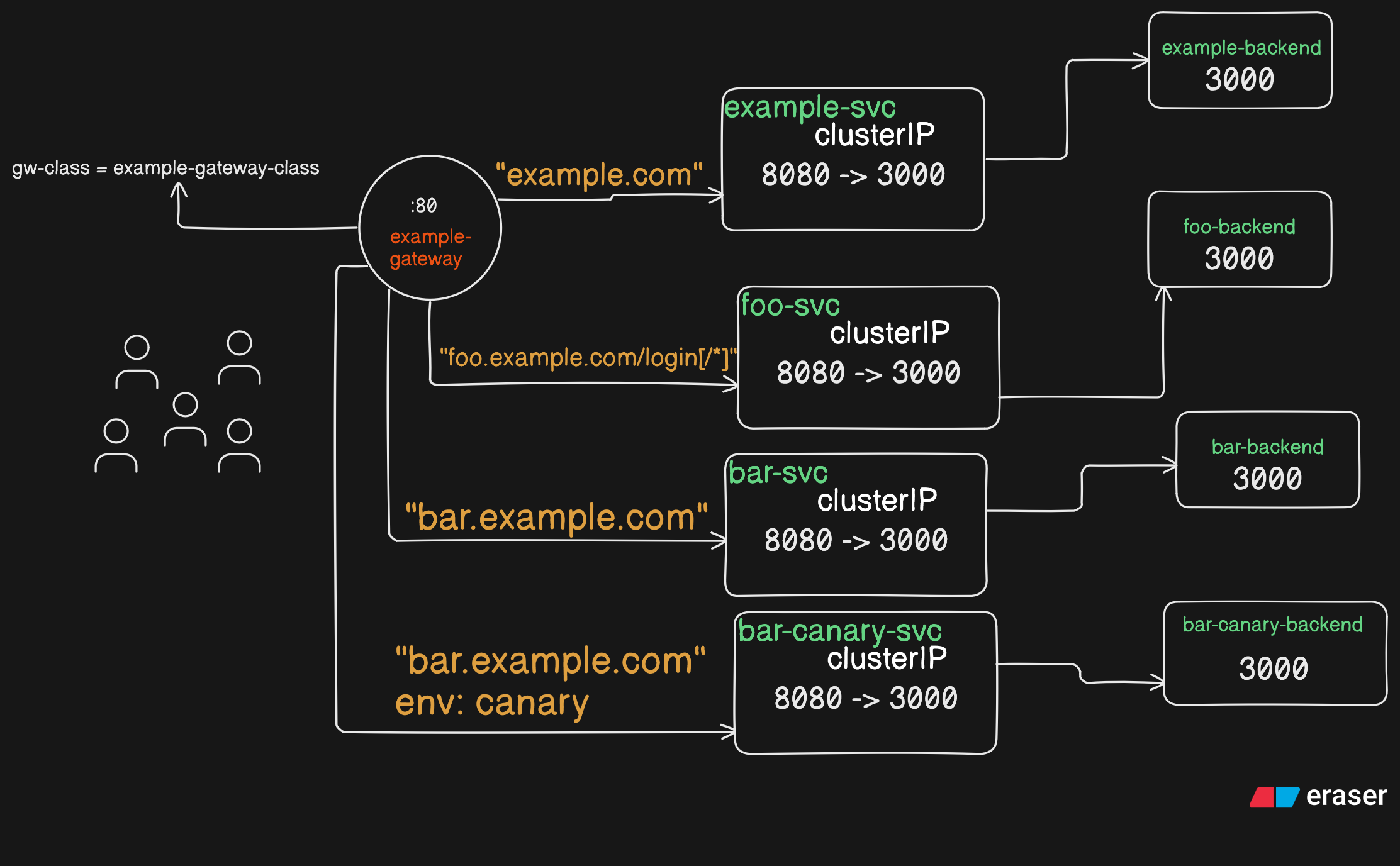
When you apply downloaded http-routing-example.yaml:
kubectl apply -f http-routing-example.yamlThat will result in the following architecture:
Mimic Gateway (Load Balancer) By Port Forwarding
Since in kind cluster, we don’t have external load balancer support using envoy proxy, port forwarding can be useful. If port forwarding is not use you have to go inside cluster as such docker exec -it kind-worker bash (assuming you are using kind cluster, you can use minikube ssh for minikube) for testing using ClusterIP of envoy-default-example-gateway- prefixed service in envoy-gateway-system namespace. So better port forward at localhost so you won’t need to docker exec:
export ENVOY_SERVICE=$(kubectl get svc -n envoy-gateway-system --selector=gateway.envoyproxy.io/owning-gateway-namespace=default,gateway.envoyproxy.io/owning-gateway-name=eg -o jsonpath='{.items[0].metadata.name}')

kubectl -n envoy-gateway-system port-forward service/${ENVOY_SERVICE} 8888:80 &
Now you can use localhost:8888 as if it is your load balancer or proxy.
Use Appropriate Command Seeing Architecture Diagram
First of all look at architecture diagram above (yes again!) and use appropriate command. The output format is json and you can see the pod field value to verify if the traffic is routed to appropriate backend.
Test Incomming Traffic For example.com
curl -H 'Host: example.com' http://localhost:8888Test Incomming Traffic For foo.example.com/login[/*]
curl -H 'Host: foo.example.com' http://localhost:8888/login/user/123Test Incomming Traffic For bar.example.com
curl -H 'Host: bar.example.com' http://localhost:8888Test Incomming Traffic For bar.example.com During Canary Deployment
curl -H 'Host: bar.example.com' -H 'env: canary' http://localhost:8888